Md. Al Amin
How to Transfer Contacts to a New Phone
How to Transfer Contacts to a New Phone: Complete Guide
Getting a new phone is exciting, but moving your contacts can be a concern if you have hundreds of saved numbers. Fortunately, you don't need to type them in one by one. Depending on your old and new devices, you can transfer contacts using Google, iCloud, a SIM card, a VCF file, or a direct phone-to-phone transfer.
This guide explains how to transfer contacts between Android and iPhone and what to do if some contacts don't appear after the transfer.
What to Do Before Transferring Contacts
Before switching phones, check where your contacts are stored on the old device.
They may be saved to:
- Google Account
- Apple Account/iCloud
- SIM card
- Phone storage
- Another email account
It's a good idea to create a backup before transferring anything. Don't erase or reset your old phone until you've confirmed that your contacts are available on the new device.
How to Transfer Contacts from Android to Android
If both phones are Android devices, your Google Account is usually the simplest option.
Step 1: Turn On Contact Sync
On your old Android phone, open Settings and find the Google or account synchronization settings.
Make sure Google Contacts synchronization is enabled.
The exact menu may vary between Samsung, Google Pixel, Xiaomi, OnePlus and other Android phones.
Step 2: Sign In on the New Phone
During setup of your new Android phone, sign in with the same Google Account used on the old phone.
Step 3: Check Your Contacts
Open the Contacts app on the new phone.
After synchronization finishes, your Google-saved contacts should appear automatically.
If they don't appear immediately, check that contact synchronization is enabled and refresh the Contacts app.
How to Transfer Contacts from iPhone to iPhone
iCloud is generally the easiest option when moving between iPhones.
Step 1: Enable Contacts in iCloud
On your old iPhone, go to:
Settings → [your name] → iCloud
Make sure Contacts is turned on.
Step 2: Set Up the New iPhone
Sign in using the same Apple Account on your new iPhone.
If you're setting up the phone for the first time, follow Apple's transfer or restore process.
Step 3: Open Contacts
Once iCloud synchronization has completed, open the Contacts app and check that your contacts are there.
How to Transfer Contacts from Android to iPhone
If you're switching from Android to iPhone, you have several options.
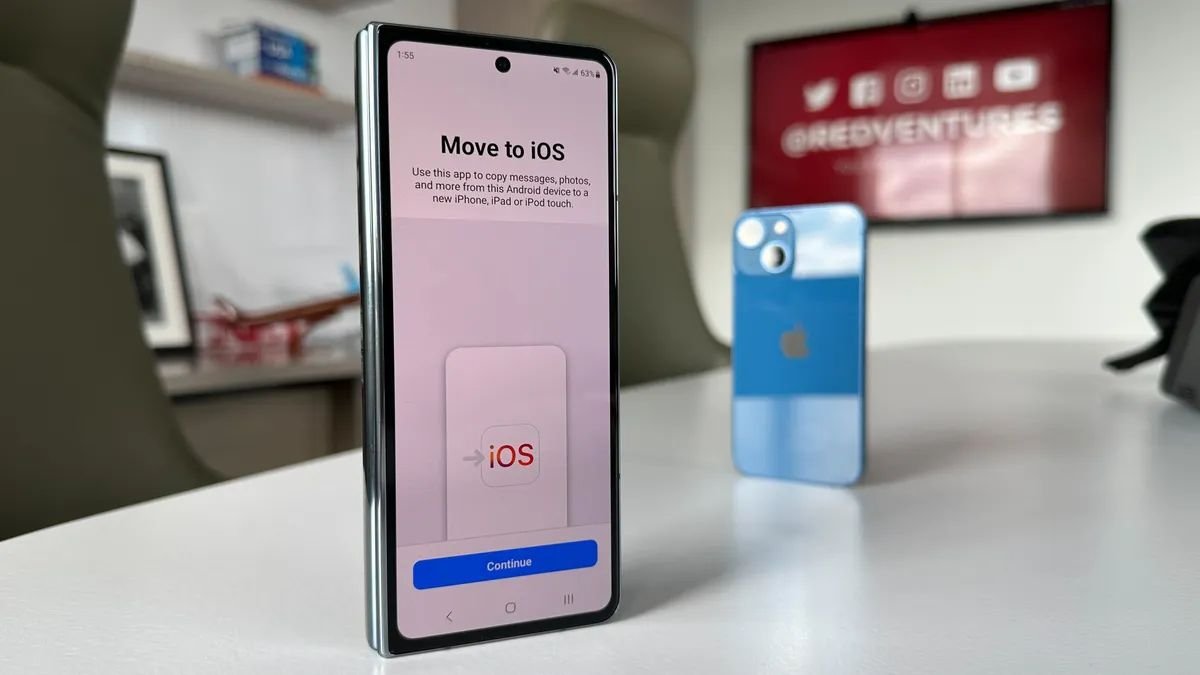
Use Apple's Move to iOS
If the iPhone is being set up for the first time, Apple's Move to iOS process can help transfer information from your Android device.
Follow the instructions displayed during iPhone setup and select the information you want to transfer.
Use Google Contacts
If your contacts are already stored in your Google Account, you can also add that account to your iPhone.
Go to:
Settings → Contacts → Contacts Accounts → Add Account → Google
Sign in and turn on Contacts.
Your Google contacts can then appear in the iPhone Contacts app.
How to Transfer Contacts from iPhone to Android
When moving from an iPhone to Android, you can transfer your contacts using the transfer process provided by your new Android device.
Another option is to move contacts from your Apple account and import them into Google Contacts.
If your contacts are already associated with a Google Account, simply add that account to the new Android phone and enable contact synchronization.
How to Transfer Contacts Using a SIM Card
Some phones allow contacts to be copied to or imported from a SIM card.
On the old phone:
- Open the Contacts app.
- Find Manage Contacts or Import/Export.
- Select the SIM-related export option if available.
- Move the SIM card to the new phone.
- Open Contacts on the new device.
- Select Import from SIM if the option is available.
However, SIM cards have limited storage and may not preserve information such as email addresses, multiple phone numbers, contact photos, or other details.
For this reason, Google, iCloud, or a direct transfer is generally a better option.
How to Transfer Contacts Using a VCF File
A VCF file is another useful way to move contacts between phones.
Export Contacts
On your old phone, open the Contacts app and look for an option such as:
Manage Contacts → Import/Export → Export to VCF
Save the resulting file.
Move the VCF File
You can send the file to the new phone using a:
- USB cable
- Computer
- Bluetooth
- Quick Share/Nearby Share
Import the Contacts
Open the VCF file on the new phone and choose the option to import the contacts.
This method can be particularly useful if you don't want to rely on cloud synchronization.
How to Transfer Contacts When the Old Phone Is Broken
If the old phone no longer works, first determine whether your contacts were synchronized with an online account.
Android
Sign in to the same Google Account on the new phone and check Google Contacts synchronization.
iPhone
Sign in with the same Apple Account and check whether your contacts were stored in iCloud.
If the contacts existed only in the old phone's internal storage and the device cannot be accessed, professional data recovery may be required.
Why Are Some Contacts Missing?
If only some contacts transferred, they may have been stored in different locations.
For example, your old phone could contain:
- Google contacts
- SIM contacts
- Phone-only contacts
- iCloud contacts
- Contacts from another email account
Check the Contacts app's account or display settings and make sure all relevant accounts are enabled.
You may need to import contacts from another account or storage location.
How to Remove Duplicate Contacts
Transferring contacts through multiple methods can sometimes create duplicates.
Many phones offer a feature called Merge Contacts, Merge & Fix, or Remove Duplicates.
Use that feature to combine duplicate entries rather than manually deleting them.
Can You Transfer Contacts Without a SIM Card?
Yes.
A SIM card isn't required to transfer contacts. You can use:
- Google Contacts
- iCloud
- VCF files
- Direct phone-to-phone transfer
- Other supported backup and transfer tools
Will Contact Photos and Other Information Transfer?
It depends on the transfer method.
Cloud accounts and direct phone-transfer tools can preserve more contact information than SIM cards. SIM storage is generally limited and may not support all details associated with a contact.
What Should You Do Before Selling Your Old Phone?
Don't erase the old phone immediately after transferring your contacts.
First:
- Open Contacts on the new phone.
- Search for several important contacts.
- Check that important numbers are present.
- Confirm your other important data has been backed up.
- Only then reset the old phone.
This prevents accidental loss of contacts that weren't successfully transferred.
Frequently Asked Questions
What is the easiest way to transfer contacts to a new phone?
Using a Google Account for Android or iCloud for iPhone is usually the simplest approach. Direct phone-transfer tools can also be convenient when setting up a new device.
Can I transfer contacts without a SIM card?
Yes. Google, iCloud, VCF files and direct device transfers can all work without a SIM card.
How do I transfer contacts from Android to iPhone?
You can use Apple's Move to iOS process during initial setup or synchronize your Google contacts with the iPhone.
How do I transfer contacts from iPhone to Android?
You can use the transfer process provided during Android setup or move your contacts through an account or supported import method.
Why didn't all my contacts transfer?
Some contacts may have been stored on the SIM, phone storage, or a different online account. Check the accounts and storage locations used by your old phone.
Can I recover contacts from a phone that won't turn on?
If the contacts were synchronized with Google or iCloud, signing into the same account may restore them. Contacts stored only on the damaged phone may require professional recovery.
Final Thoughts
The best way to transfer contacts to a new phone is to use an account-based backup such as Google or iCloud, or the direct transfer tools available during phone setup. A SIM card or VCF file can also be useful when cloud synchronization isn't available.
Most importantly, don't reset your old phone until you've checked the new phone and confirmed that your important contacts are safely transferred.






- 32 megapixel camera new phone Tecno Spark 10 Pro
- AI in Bangladesh: Unlocking Potential Amid Challenges
- Google Bard now in Bangladesh
- Samsung Galaxy A54 5G: A perfect price fit!
- Refreshing only increases the speed of the computer?
- Elon Musk`s SpaceX hires 14-year-old Bangladeshi-American Kairan
- Emerging Tech Innovations 2025: The Future is Here
- Tottering from Twitter to Threads
- Spotify tests voice translation feature for podcasts
- How Afraid Should We Be of Artificial Intelligence?